
Best Galaxy S26 Ultra Mockups for App & UI Designers (2026)
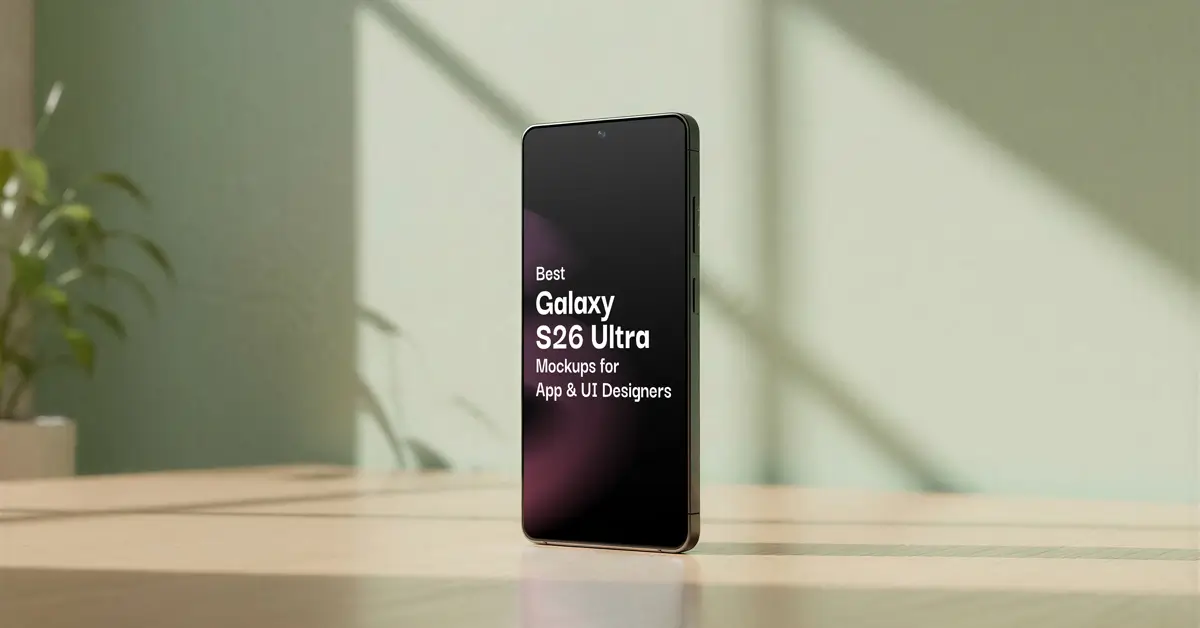
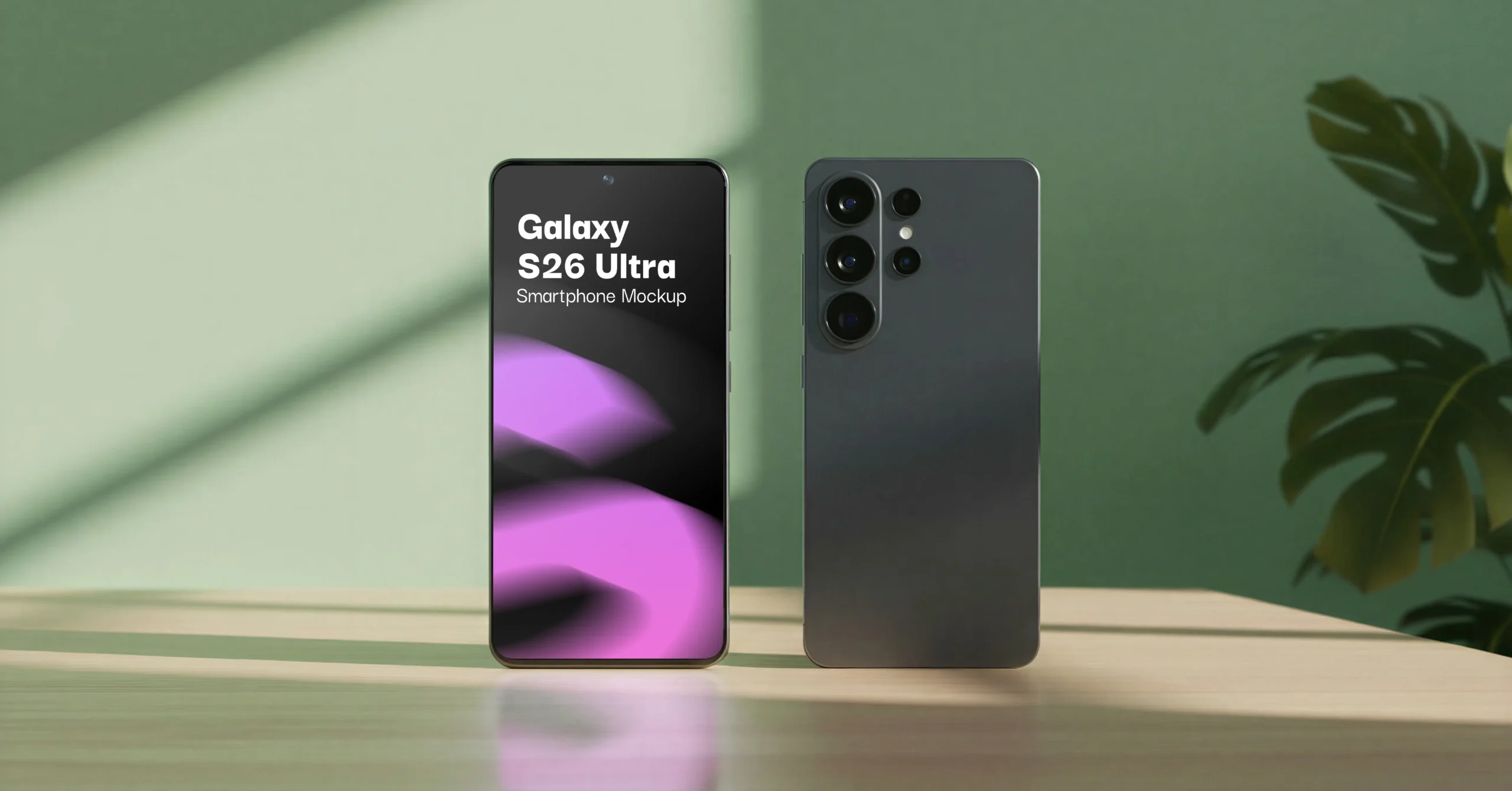
This Galaxy S26 Ultra mockup drops your app, UI, or branding design straight into a styled lifestyle scene, the device stands upright against a soft green wall, resting on a warm wooden surface with a trailing plant just out of focus in the background. It’s the kind of shot that looks like it came from a design agency’s portfolio, not a stock template.
The PSD file for this Galaxy S26 Ultra mockup includes two angles, a clean front-display view for showing off your app or UI design, and a front-and-back composition that also shows the S26 Ultra’s camera module and rear panel, useful if you’re presenting branding work that needs to read on both sides of the device.
Everything is built on smart object layers, so dropping in your design takes seconds in Photoshop or Photopea, no masking, no perspective adjustments. At 5250×3000px resolution, it’s sharp enough for portfolio pieces, Behance/Dribbble shots, client decks, and marketplace listing previews alike.
If you’re looking for a Galaxy S26 Ultra mockup that gives your app, UI, or branding work a premium, editorial feel without any extra setup, this scene delivers it straight out of the box.
What to Look for in a Galaxy S26 Ultra Mockup
Before you download the first PSD that shows up in your search results, check it covers these basics:
Smart object layers. This is non-negotiable. Smart objects let you drop your design into the mockup and have it automatically wrap to the screen’s perspective, lighting, and shadows — no manual warping required.
High resolution. For portfolio pieces, client decks, and marketplace listings (Behance, Dribbble, Envato, Creative Market), you want at least 3000px on the long edge so the mockup holds up on large displays and in print.
A scene that fits your brand. A plain studio shot works for technical documentation, but if you’re presenting consumer-facing app or branding work, a styled lifestyle scene — natural light, texture, a sense of place — makes the work feel more premium and “real.”
Multiple angles, if you need them. If your project includes branding elements visible on the back of the device (a custom case design, for example), look for a mockup that includes both front and back views in the same scene.
Clear licensing. Make sure commercial use, client work, and marketplace resale are explicitly covered before you buy.
Our Pick: Galaxy S26 Ultra Aesthetic Smartphone Mockup
For designers who want a scene that already looks like it belongs in a design agency’s portfolio, the Galaxy S26 Ultra Aesthetic Smartphone Mockup checks every box above.
The device sits upright against a soft green wall on a warm wooden surface, with a trailing plant softly framing the shot — the kind of styled, editorial scene that elevates whatever you place on the screen. The pack includes two compositions: a clean front-display angle for showing off app and UI work, and a front-and-back angle that also reveals the camera module and rear panel, useful for branding projects that need to read from both sides of the device.
Everything is built on smart object layers at 5250×3000px resolution, so you can drop in your design and export a client-ready shot in Photoshop or the free Photopea in under a minute.
Best for: app and UI/UX portfolio pieces, client presentation decks, marketplace listing previews, and branding projects that need a front-and-back view.
Galaxy S26 Ultra Aesthetic Smartphone Mockup
No complicated setup. No manual scene creation. Just drop your design into the Galaxy S26 Ultra Aesthetic Smartphone Mockup, and instantly get a professional-grade presentation.
How to Use a Smart Object Mockup (Quick Walkthrough)
If you’ve never worked with smart object PSDs before, the process is faster than most people expect:
- Open the PSD file in Photoshop or Photopea.
- Find the smart object layer (usually labeled “Your Design Here” or similar) in the layers panel and double-click its thumbnail.
- A new file opens — paste or place your design into that file and save it.
- Switch back to the main mockup file. Your design will automatically appear on the device screen, with the correct perspective, lighting, and shadows already applied.
- Export as PNG or JPG for your portfolio, deck, or listing.
That’s it — no manual transforms, no matching shadows by eye.
Where to Browse More Android Device Mockups
If the Galaxy S26 Ultra isn’t the exact fit for your project, ModernPSD’s Android Mockup collection covers other current devices and scene styles, and the Device Mockups category includes iPhone and tablet options if you need to show your design across multiple platforms in one deck.
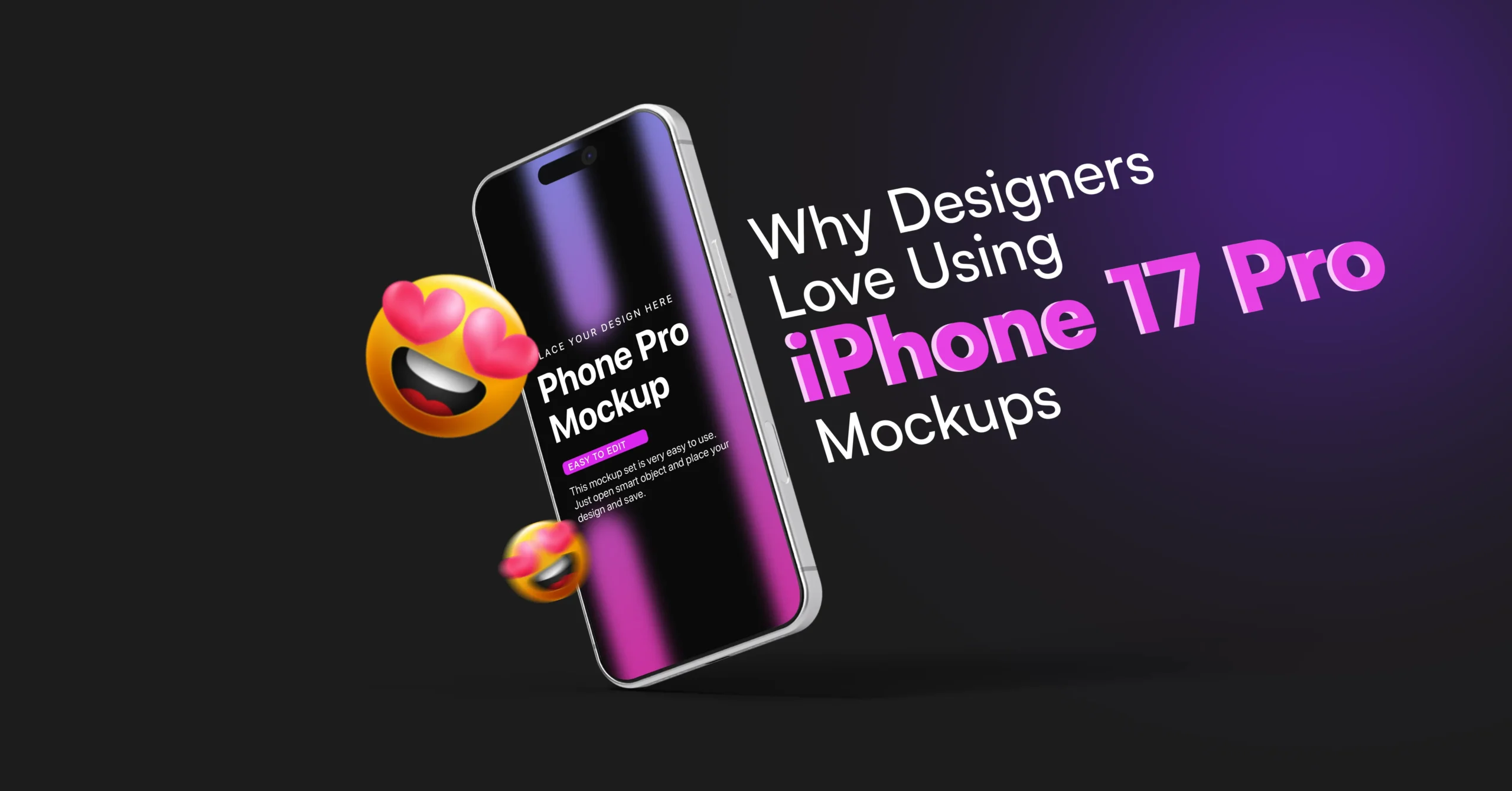
👉 You might also be interested in reading our article: Why Designers Love Using iPhone 17 Pro Mockups
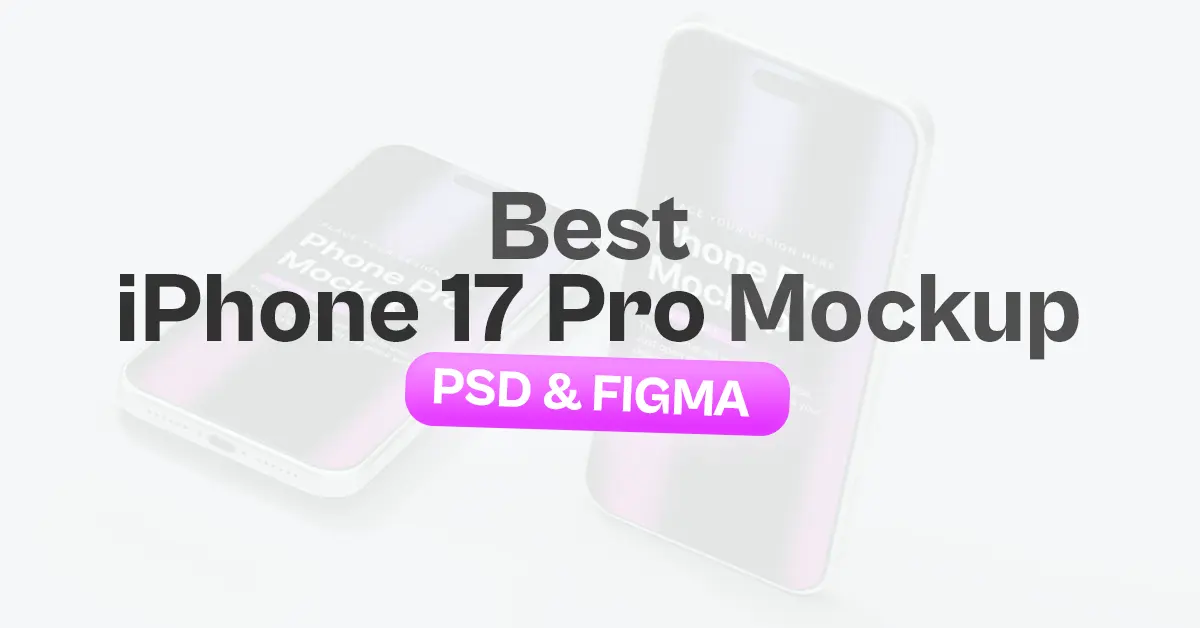
How to Use an iPhone 17 Pro Mockup
Using an iPhone 17 Pro mockup is a simple process. In Photoshop, you open the smart object layer, replace it with your UI design, save the file, and export the final visual. In Figma, you directly replace the screen content and adjust alignment before exporting.
Within minutes, a flat interface becomes a professional presentation ready for clients, portfolios, or marketing campaigns.
Final Thoughts
A good mockup is one of the highest-leverage assets in a designer’s toolkit — it’s the difference between “here’s a screenshot” and “here’s what this looks like in someone’s hands.” For Galaxy S26 Ultra work in particular, the Aesthetic Smartphone Mockup gives you a styled, premium scene with both front and back views — ready to drop your design into and present today.